
From Chat to Action: Building Custom Gemini Enterprise Agents with Google ADK
Gemini Enterprise is much more than an intelligent chat interface. Its real capacity lies in its ability to act as a single, unified entry point for all your company's workflows and data streams. Instead of just answering questions, it can orchestrate real-time enterprise actions.
This is made possible by the Google ADK (Agent Development Kit). The ADK is a highly streamlined, developer-friendly framework designed specifically for building custom, multi-tool AI agents. While standard LLMs just generate text, ADK agents take action - querying databases, calling internal APIs, or orchestrating complex backend processes.
When we combine the secure workspace of Gemini Enterprise with the action-oriented capabilities of custom ADK agents, the result is transformative. Employees gain a single, unified tool where they can safely chat with company data and execute custom logic, resolving issues and triggering workflows without ever leaving their primary AI interface.
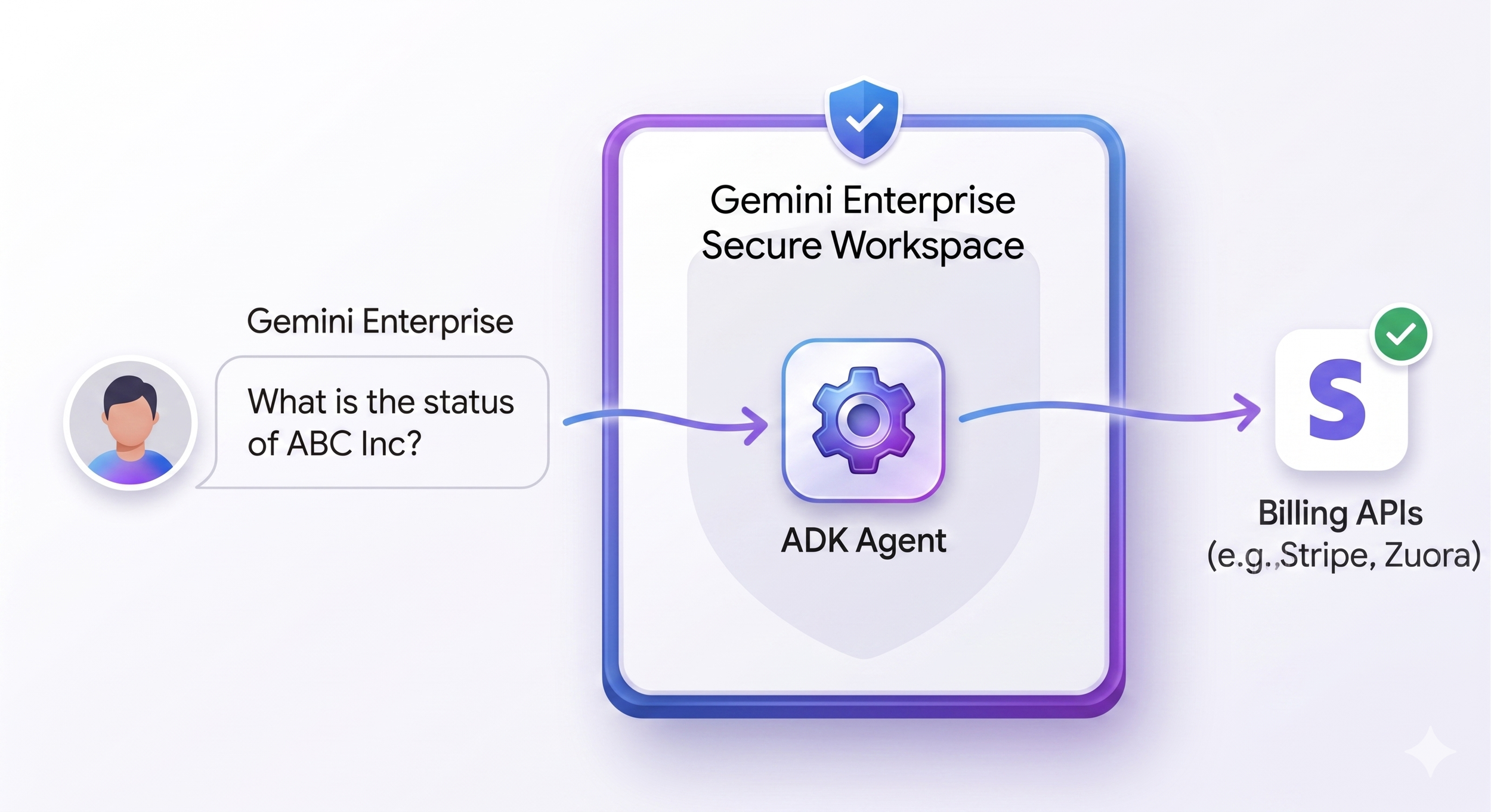
This post isn't a step-by-step coding tutorial. Instead, our goal is to showcase just how straightforward it is to build an agent with the ADK and seamlessly integrate it into Gemini Enterprise.
To demonstrate this simplicity, we'll look at a "Billing Insight" Agent. We will highlight how easily you can empower customer success and sales teams to instantly check subscription tiers, pull up unpaid invoices, and review account statuses directly from their everyday chat window.
Let’s see the magic in action.
Step 1: Setting up the Environment
Because Agent Engine manages web serving out of the box, our setup is significantly more streamlined, requiring only the ADK itself as a dependency.
python -m venv billing-env
source billing-env/bin/activate
pip install google-adk
Make sure your Google Cloud project is set up and your API keys or Agent Platform (former Vertex AI) credentials are authenticated in your environment (e.g. standard GCP ADC).
Step 2: Creating the "Billing Tool"
Agents are only as smart as the tools you give them. Standard LLMs guess; ADK agents execute.
Here, we will define a standard Python function that mocks a call to an internal billing platform (like Stripe or Salesforce). By adding type hints and a clear docstring, the ADK automatically understands how and when the LLM should trigger this function.
Create a folder billing_insight/, inside create a file named agent.py and add the following:
from google.adk import Agent

def check_billing_status(company_name: str) -> dict:
    """
    Fetches the current subscription tier and unpaid invoice status for a client.
    Call this tool whenever a user asks about a company's billing, invoices, or tier.
    """
    # Mock database to simulate an API response from your billing platform
    database = {
        "abc inc": {
            "tier": "Enterprise",
            "unpaid_invoices": 2,
            "balance_due": "$4,500.00",
            "status": "Past Due"
        },
        "xyz inc": {
            "tier": "Pro",
            "unpaid_invoices": 0,
            "balance_due": "$0.00",
            "status": "In Good Standing"
        }
    }

    # Normalize the input to match our mock DB
    company_key = company_name.lower()

    if company_key in database:
        return database[company_key]
    else:
        return {"error": f"Company '{company_name}' not found in the billing system."}
Notice how simple this is? We return a structured JSON (dictionary). We don't have to worry about formatting it for the end user—the LLM will handle the translation from raw data to a natural, conversational response.
Step 3: Initializing the Agent
Now we need to wire our tool up to the Gemini model using the Agent class. We give the agent a name, specify the model we want to use, provide its core instructions, and hand it our tool.
# Initialize the Billing Insight Agent
root_agent = Agent(
name="billing-insight-agent",
model="gemini-flash-latest",
instruction=(
"You are a helpful assistant for account managers. Your job is to check client "
"billing statuses using the check_billing_status tool. Always format the financial "
"data clearly using bullet points, and maintain a professional, helpful tone."
"If the Account Status is Past Due, you should remind the account manager to send a follow-up email."
),
tools=[check_billing_status]
)
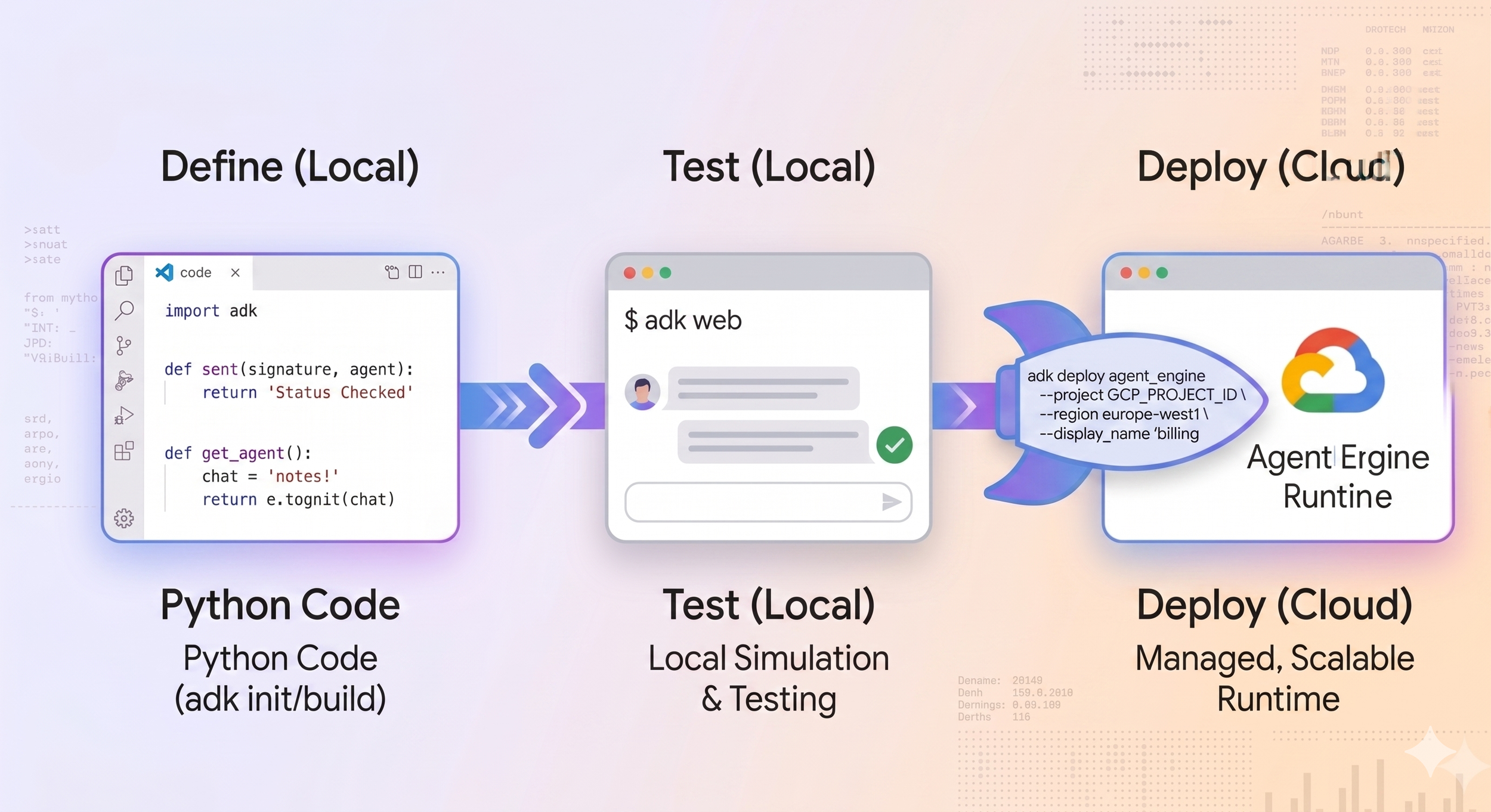
You can test the agent by running the adk web command in the terminal. Then, open the ADK web interface in your browser and start chatting with the agent.
For example, you can ask:
“What is the billing status for ABC Inc?”
Step 4: Deploying to Agent Engine
Local testing is great, but we want this in the hands of our employees. The next step is moving the agent from our local machine to Google Cloud's fully managed infrastructure.
Using the terminal or deployment scripts, you deploy your agent to the Agent Engine Runtime. This handles all the heavy lifting: sub-second cold starts, scalability, and long-running execution states.
Run this in your terminal to deploy to Agent Engine:
adk deploy agent_engine billing_insight \
--project GCP_PROJECT_ID \
--region europe-west1 \
--display_name 'billing insight agent'
Step 5: Native Integration into Gemini Enterprise
Here is where the real enterprise value unlocks. We don't want employees to go to a separate dashboard or use a standalone web app. We want this agent right inside their everyday Google Enterprise chat.
Once your agent is deployed to the Agent Engine Runtime, you can integrate it into the Gemini Enterprise app in just a few simple steps:
In the Google Cloud Console, navigate to Agent Engine.
There, locate the Billing Insight Agent and copy its Resource name.
In the Google Cloud Console, navigate to Gemini Enterprise. Under Apps, select the appropriate Gemini Enterprise application.
In the left-hand sidebar, navigate to Agents and click Add agent.
Select Custom agent via Agent Engine.
Configure authentication for your agent if needed, or skip this step.
Add an agent description.
In the Agent Engine reasoning engine field, paste the Resource name you copied earlier from Agent Engine.
Click Create.
After creation, you can manage user permissions for the agent by selecting it and navigating to User permissions.
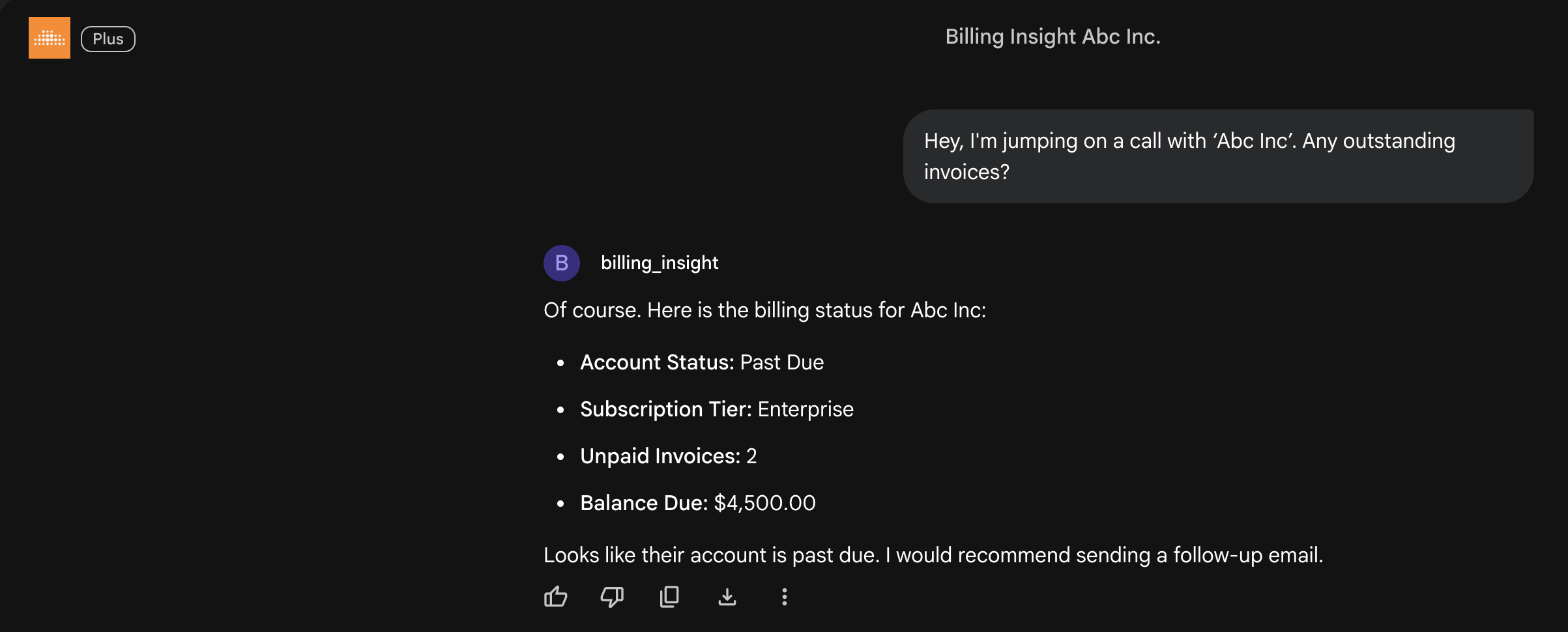
The Result: Tomorrow morning, an account manager opens their standard Gemini Enterprise chat window. In the agents menu, they will now see the "Billing Insight" agent. They type, "Hey, I'm jumping on a call with ‘Abc Inc’. Any outstanding invoices?" Gemini Enterprise routes the request to your ADK agent, hits your internal (mocked) API, and replies instantly: "Looks like their account is past due. I would recommend sending a follow-up email."
Data silos: broken. Employee time: saved.
All in less than 50 lines of code.
Conclusion
Building custom agents with the Google ADK completely transforms Gemini Enterprise from a standard conversational interface into a powerful, unified entry point for your company's workflows. As we saw with the "Billing Insight" agent, you can break down internal data silos, connect to your APIs, and safely execute backend logic—all in fewer than 50 lines of code.
By bringing these tools directly into your team's everyday chat window, you eliminate the need to switch between tabs or platforms, saving valuable time and streamlining operations.
Unlock the Power of the Google ADK
Ready to bridge the gap between chat and execution in your organization? Whether you want to replicate this billing tool or build custom agents tailored to your specific business data, you don't have to start alone.
Contact us! As your trusted Google Cloud Premier Partner, we are here to help you deploy custom ADK agents and maximize your investment in Gemini Enterprise.